
Is Luminar Neo Worth Buying?
Luminar Neo is a photo editing software that uses Artificial Intelligence (AI). The first version was released in 2016. Luminar has received very positive reviews from Tech Radar, Macworld, and Digital Rev, who appreciated the number of features offered by the software.
Author & Photographer: George Mitchell
Our recommendations are not influenced by affiliate links – we have none. Our content and advice is derived from our personal expertise, experience, and knowledge based on photographing and editing for 23 years of travel and living around the world. I am an avid hiker, nature lover and photographer (all photos in our web site are my own). I particularly love travel photography (which includes many genres from landscapes to portraits).
Is Photoshop Overpriced?
Is Adobe Photoshop (PS) the only photo editing software that photographers should use? Has Adobe overpriced PS? Let’s compare it to Microsoft Home and Business, which costs a flat amount of $310 for 5 products. PS costs $339 per year for one product.
There are many other simplistic editors like Photoshop Essentials that I have used for my iPhone images. But they do not provide the capabilities of PS, especially the metadata editor and image grid browser of Adobe Bridge; the curves dialog presets, action macros, and user-defined function keys of Photoshop. On the other hand, PS is hard to learn, complex and time-consuming to use.
I have been using Photoshop (PS), since 2005. I am still using version CS6, which is a very powerful photo editing tool. I did not upgrade from CS6 to the Creative Cloud (CC) since Adobe was charging more for an annual subscription each year than I paid one time for a perpetual license.
However, I just upgraded my broken Nikon D7100 DSLR camera to the Canon EOS R5 mirrorless camera. PS CS6 cannot handle the Canon CR3 RAW image format. When I was reading Ken Rockwell’s Canon R5 review, I noticed that he often used Skylum software in addition to PS. So, I decided to try a new photo editor, Luminar Neo from vendor Skylum. I have been most impressed by how easy it is to make adjustments to my photos.
Luminar Neo Photo Editing Features
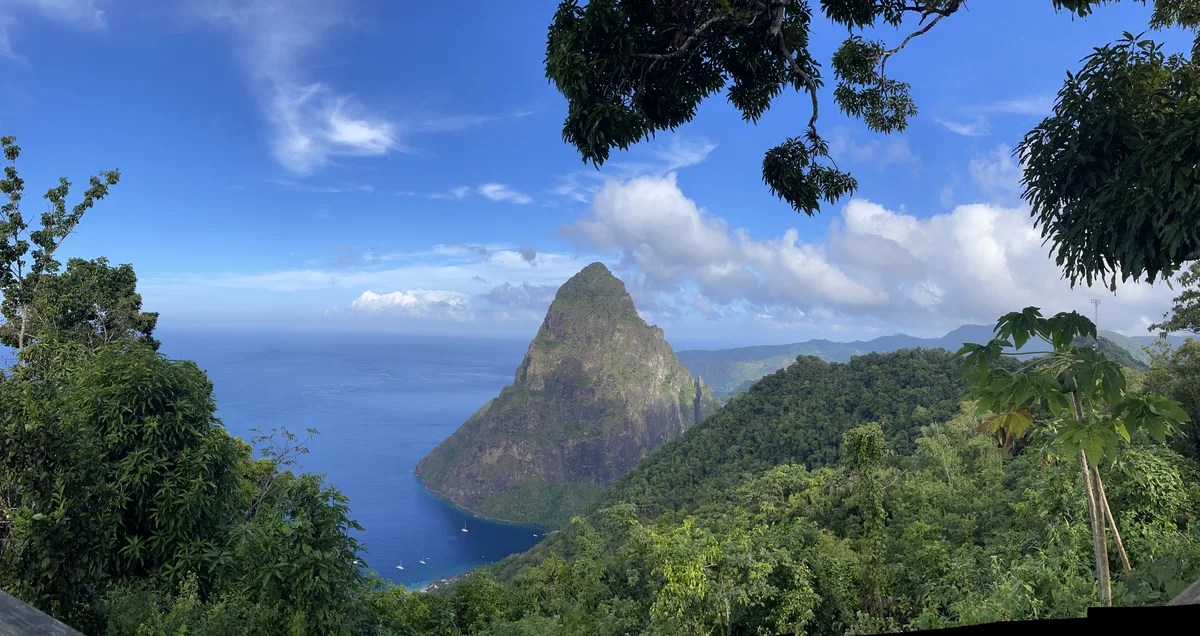
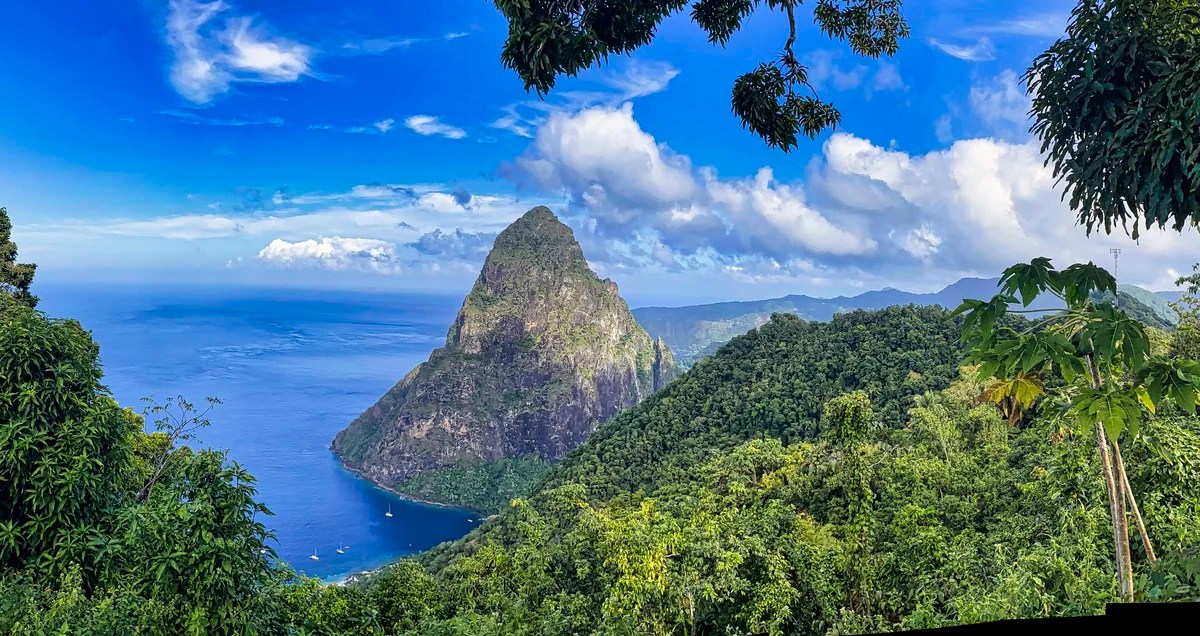
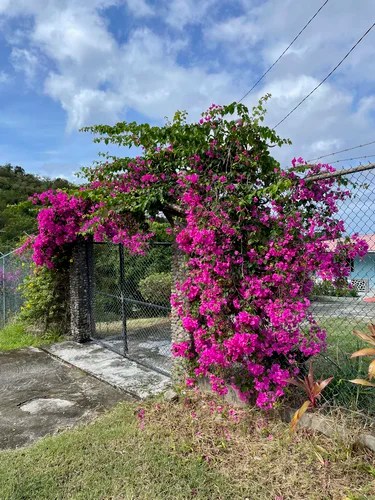
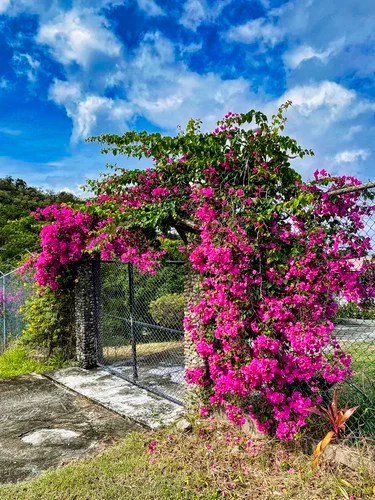
Luminar Neo will appeal to people who like ease of use and creative enhancements. Normally I prefer to improve my photos rather than replace backgrounds, make collages, add sun rays, or totally change the atmosphere. However, I have grown to appreciate the ability to swap dull, overcast skies with something better. It was particularly useful editing my iPhone12 photos since they were very lifeless due to lack of a polarizing filter. The after image published in One Caribbean Island You Must See #2 was the result after using the Enhance slider.

Travel and Landscape Photography
I primarily do travel photography. But travel photography covers a diverse set of genres like macro, landscape, nature, architecture, and portrait photography. The following are the Luminar Neo tools that I have found useful for editing my photos. Most of them use Artificial Intelligence (AI) to perform actions.
EnhanceAI — analyzes your photo and improves the color quality, contrast, saturation, exposure, details, and tone. I use this to simulate a Polarizing filter, which is especially useful for the iPhone images shown in this post. The original photo below was taken in full sun but it does not look like it.


SkyAI — allows you to replace a dull overcast sky with a nice blue sky with fluffy clouds or one with sunset lighting.
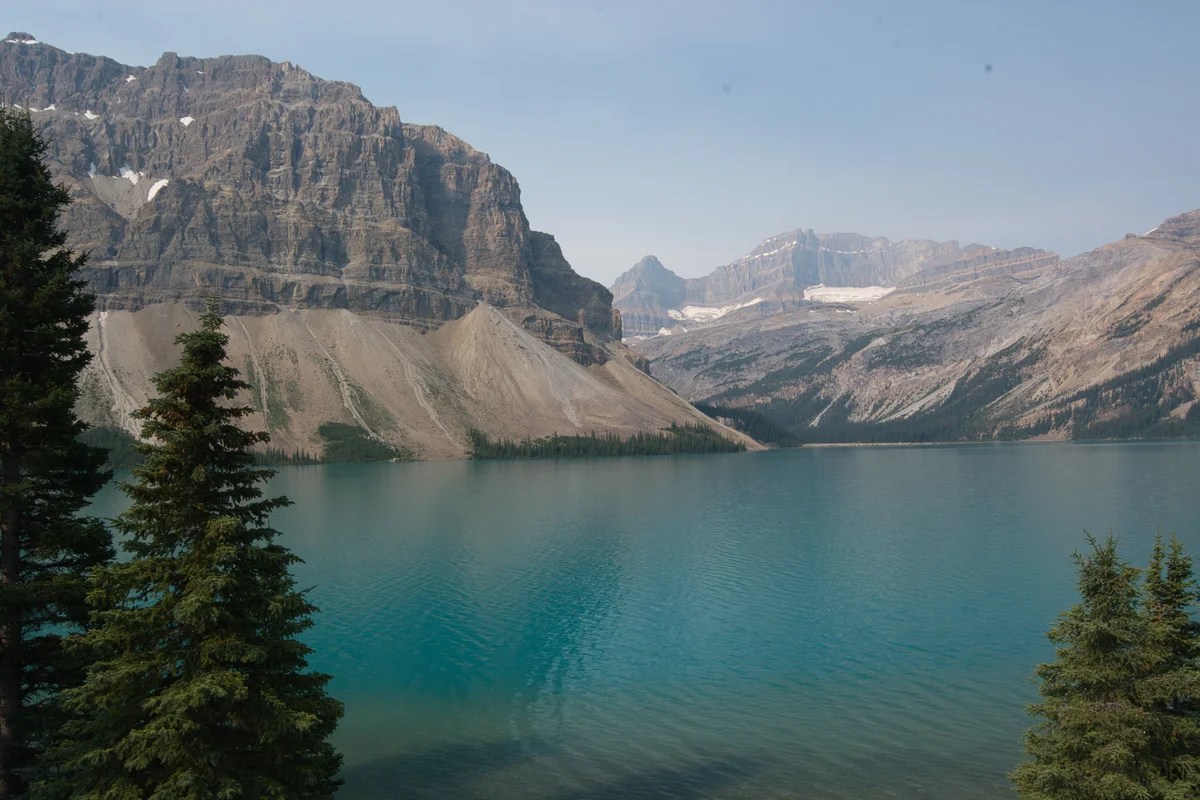
In 2017 there were huge forest fires in British Columbia, Canada. Even though it was sunny at Bow Lake on the Alberta side of the mountains, there was a smoky haze throughout the sky. The views were not how we remembered them as shown in my posts on the Rocky Mountains.
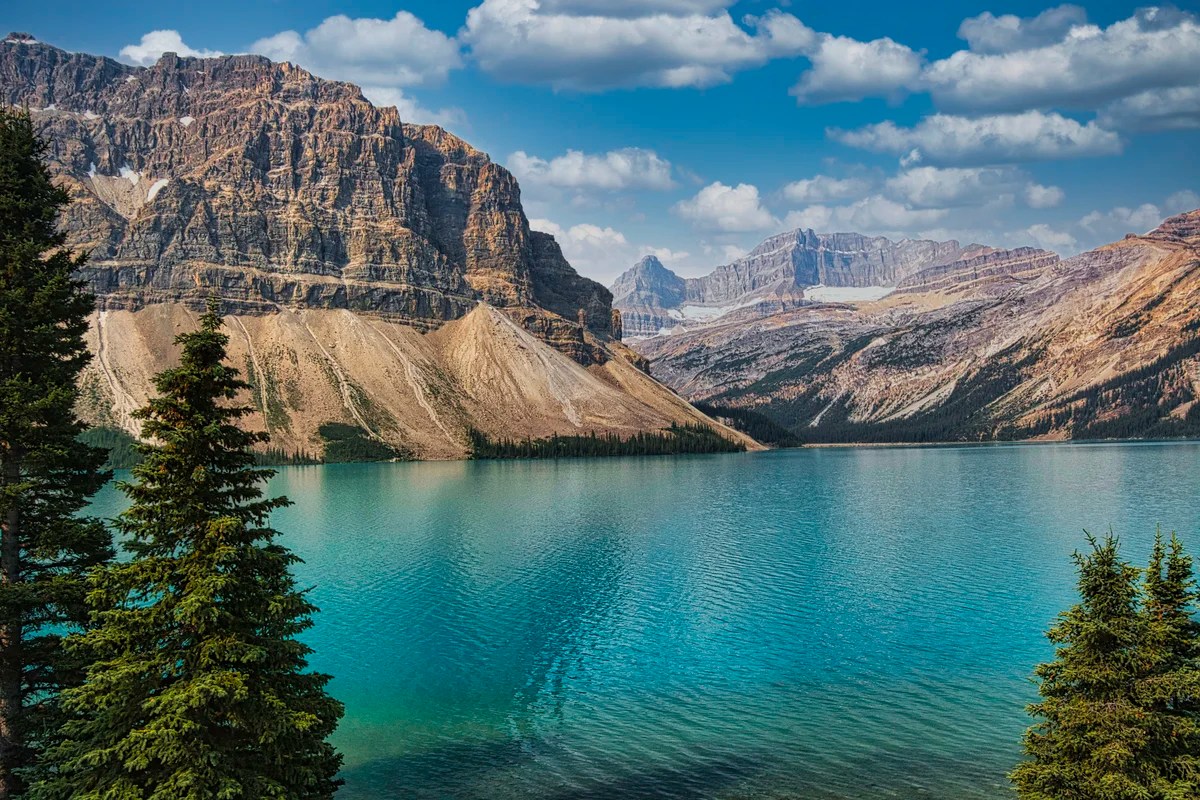
I could not get the picture to improve until I replaced the whole sky and used a high setting (50) for the Enhance Sky tool. Now this is what Bow Lake usually looks like (we used to live in Alberta).
RelightAI — increases or decreases the light in the foreground and/or background of an image. It increases the light in a natural way that is similar to additional sunlight. Even though it was a sunny day, the photo looked like an overcast day.


The after image published in One Caribbean Island You Must See #2 was the result of Enhance plus Relight, which added a small increase in sunlight. When only a partial area in the foreground or background needs additional or less light, then you have to use masking with the Develop (lighting) tool or the Dodge & Burn tool.
EraseAI — replaces dust spots or powerlines with pixels of the existing background by the push of one button.
Some users complain that there are spots that were not removed. This is a simple fix — just paint any object then press Erase to remove it. In the case below, Luminar did not recognize the powerlines. Were they too thick or angled too much?

The extra plus is that one can remove branches, road signs or other distracting things. In this case I merely painted two of the powerlines with a brush size the diameter of the wire. I had to keep the one wire that the motmot was perched on in Costa Rica.

However, this does not work well when the object crosses multiple background objects/patterns as the AI does not know what to replace it with. I found it best not to remove objects against a varied background. However, in the case above, I did remove the powerlines by performing an erase separately for each tree and sky segment. It works well enough if the background is out of focus. However, in the end the telltale artifacts were cropped out.
StructureAI — increases image contrast and brings out more details; it is the equivalent of the Clarity slider in Photoshop Adobe Camera Raw. It adds a bit more light to shadow areas.
Preset — is a set of actions that can be applied to a photo. Luminar provides many possible presets out of the box. Only one preset can be used. It does not save this as a preset setting but instead performs a series of edits that appear in the Edit history. But I found it useful to apply a preset then use the Edit history to see what edits were applied. You can adjust these settings to your taste or create your own preset(s).
Portrait Photography
I have not experimented with the more innovative and artistic features, such as removing the background or placing your subject on a whole new background or layer.

Portrait BokehAI — is a superb feature that creates a modifiable, creamy background blur. I wish this tool would work on other subjects such as flowers and animals.
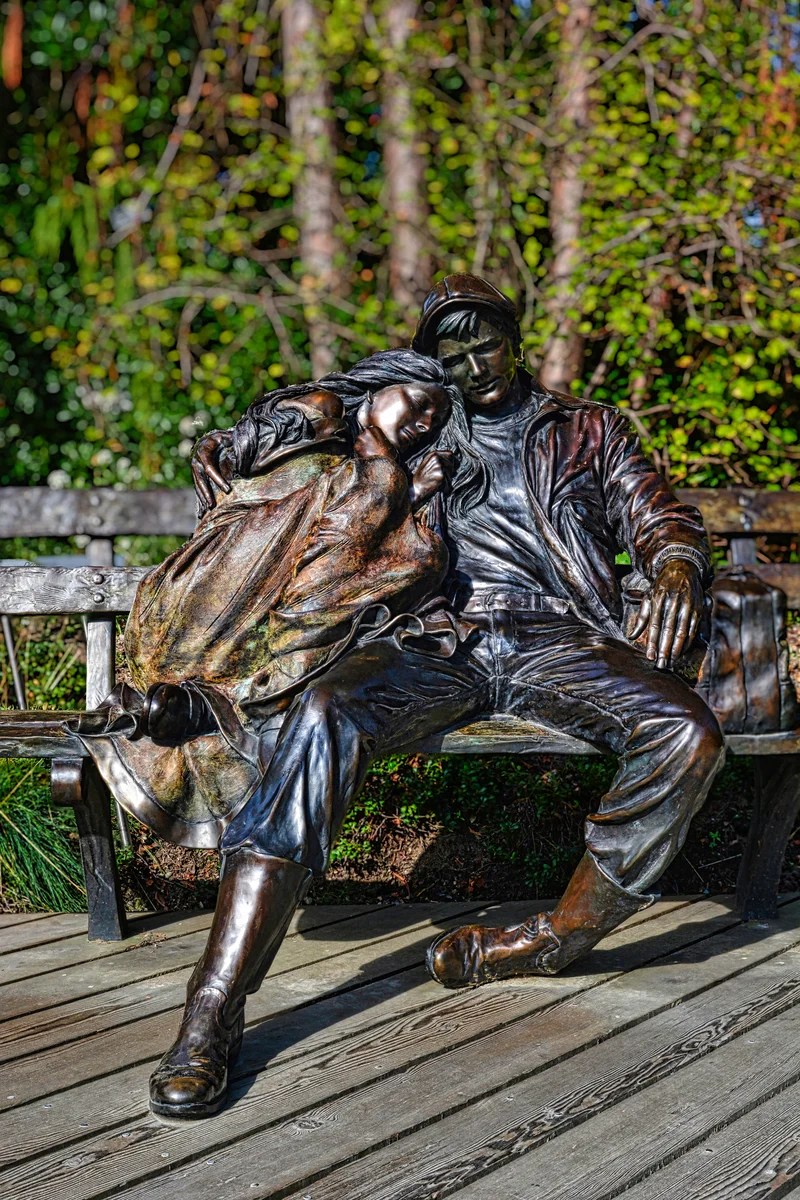
On the plus side, Portrait Bokeh does work with statues and even recognizes a group of people. The after image blurred and darkened the background but not the deck. The Enhance and Dodge & Burn tools were used to add more light to the statue.
Masking
You cannot create a mask that applies to multiple tools. I use a mask to select the background and make it totally unsharp and a bit darker. In other words, create a manual bokeh for subjects other than humans. Masking does have an AI function that categorizes photo areas by object type. You can use this to select sky, water, flora, et al., which adds these objects to the mask. However, the mask usually has to be corrected to include or exclude areas that were incorrectly or only partially assigned.
Reuse Tools
One problem in previous versions was that a tool could only be used once per photo. Neo allows you to complete one action by closing (i.e. contracting) the tool then re-opening/expanding the same tool to perform additional actions. These actions can be done in any order.
Undo or Revise Settings
One of the complaints of other users is that there is no undo feature. Yes, you can press the undo icon while you are on the current tool. But once the tool is closed the change appears to be committed.
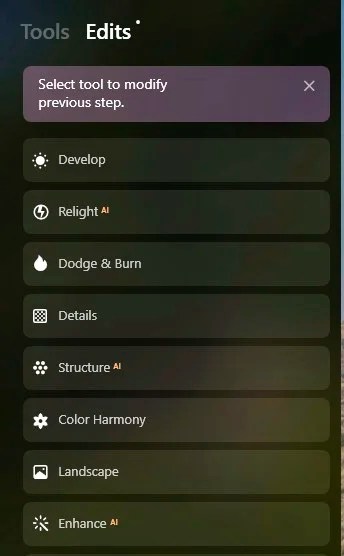
However, Luminar Neo provides an Edit history list to the right of the Tools pull-down list. It is very easy to review the past edits, individually change them, or even undo the action and send it to Trash.
Irritations
The next two issues are more learning curve than show stoppers.
1. The mask paint function uses a circular brush that can bleed over to undesirable parts of the image. There is no auto masking feature to prevent this. One has to erase areas that you don’t want masked.
2. Sometimes you may think an action was not performed because the change is not shown. This is particularly true in Edit mode. If you change one of the tools at the bottom of the edit list, more recent actions (above) are not shown on the screen. A typical example is the reappearance of spots that were already erased. You have to exit the tool you are on and enter a more recent tool. Even then, sometimes these changes to do not reappear immediately. But the changes are there.
My theory is that each edit is stored as a separate “file” and Luminar aggregates the edit files up to the level you are editing. This gives the ability to undo or modify any edit independently of each other without affecting other, even more recent, edits. But on the down side, this can often take time until you see the result. Recent updates of Luminar Neo appear to have improved its responsiveness.
Slow Performance
It seems to take a while to perform some functions such as saving an image to persist your customizations or zooming in or out of your image. I’m not sure why. You can perform multiple filters to make further adjustments. I think that Luminar stores each tool as separate “code” or files so that the edits are always modifiable.
Recent updates of Luminar Neo appear to have improved its responsiveness.
My theory is that when you perform a save or zoom, Neo has to consolidate all the “edit files” into the viewable image. It is easy to do a second instance of a tool to make further adjustments. However, I found that it is better to go back to the edit history and modify the existing tool. This minimizes the number of “edit files” to be consolidated.
Cache Settings
After just using a couple of folders of images, I added several more folders. All of a sudden, Luminar did not save the latest edits and the catalog did not show the latest saved images. Image name changes or deletes made in the file system were not being sync’ed with the Luminar catalog.
The suggestions made on-line by Skylum staff were not very helpful and did not work. I am a data architect by trade and thought that this may be due to the low defaults for cache size (1 GB) and backup size. So I increased both to 3 GB.
Things went well so I then decided to add my base photo library external drive. In other words, > 73,000 images rather than a few individual sub-folders. The backup became corrupted and I could not start Luminar. Having been a developer, I was not that upset. The photos still were on the external drives. I had exported JPEGs of my customizations so the edited photos were also saved. What I lost was the edit history of the modifications that I made. Well I could always recreate those.
I reinstalled the software. This time I only added the folders that I was using with a total of 17,000 images.
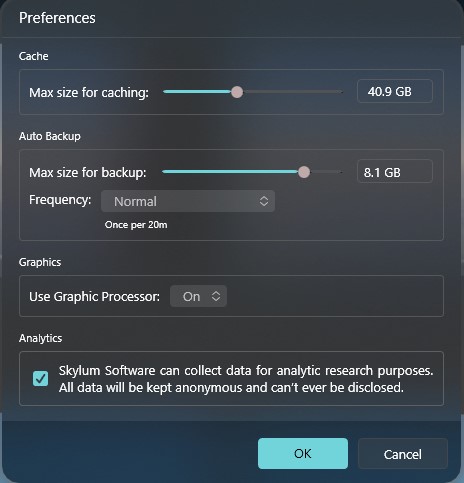
I navigated to menu option File | Preferences and:
- Changed the Max Size for Caching from default 1000 MB (1 GB) to 40 GB.
- Changed the Max Size for Backup to 8 GB (since you need to be able to backup what you are editing).
One approach is to only include subfolders that you are currently editing in the Catalog. So far things have gone well. Another alternative is to create a separate catalog for each major subset of photos — if you have a lot of photos.
Recent updates of Luminar Neo appear to have eliminated this problem.
Catalog Deficiencies
Luminar Neo’s Catalog feature is not as good as Adobe Bridge, which can navigate through the file system without having to register individual folders. Luminar also does not list the file names under each image in the grid and only shows them when you hover over an image or select it for editing. But the most important missing feature is a metadata editor. For this reason, I am continuing to use Adobe Bridge to assign the IPTC Core properties like Title, Description, Location, et al.
Luminar does not provide a batch rename capability. That’s not a problem. I have always used the freeware Bulk Rename Utility (BRU), which is useful for any type of file. I use BRU to replace the camera-specific prefix like IMG_ to my standard YYYY-MM CC-9999, where YYYY-MM is the year and month, CC is the ISO two-character country code (e.g. CA for Canada or US for United States) and/or the two to three-character ISO Country Region Code, and 9999 is the sequence number generated by the camera.
Conclusions
If you are a professional photographer who is heavily invested in PS and third party add-ons then switching to Luminar Neo may not be a good fit. Serious photographers want to assign metadata (properties) to each image to identify precise description, location, et al. In my case, I simply keep using Adobe Bridge in PS.
But for mainstream photographers, Luminar offers ease of use, sliders that enable experimentation, lacklustre sky replacement, and modifiable edits that allow late changes. In short, it facilitates creativity.
 Terra Encounters
4 thoughts on “Luminating Photos with Luminar Neo”